Installation guide

Pick your device and follow the steps. It takes about five minutes.

An internet connectionWi-Fi works. A cable is steadier for big TVs.
Your login detailsWe send them on WhatsApp when your order is done.
A player appYour plan covers the channels. Some player apps are free and some have a licence fee.

Choose your device

Pick the one you watch on and the steps appear below.

Your guide appears here once you choose a device.

Fire TV Stick setup guide

  • 5 to 10 minutes
  • V12Mate
  • Beginner friendly

We recommend V12Mate. You install it with the Downloader app.

Already have TiviMate installed? Uninstall it first, otherwise V12Mate will not install.

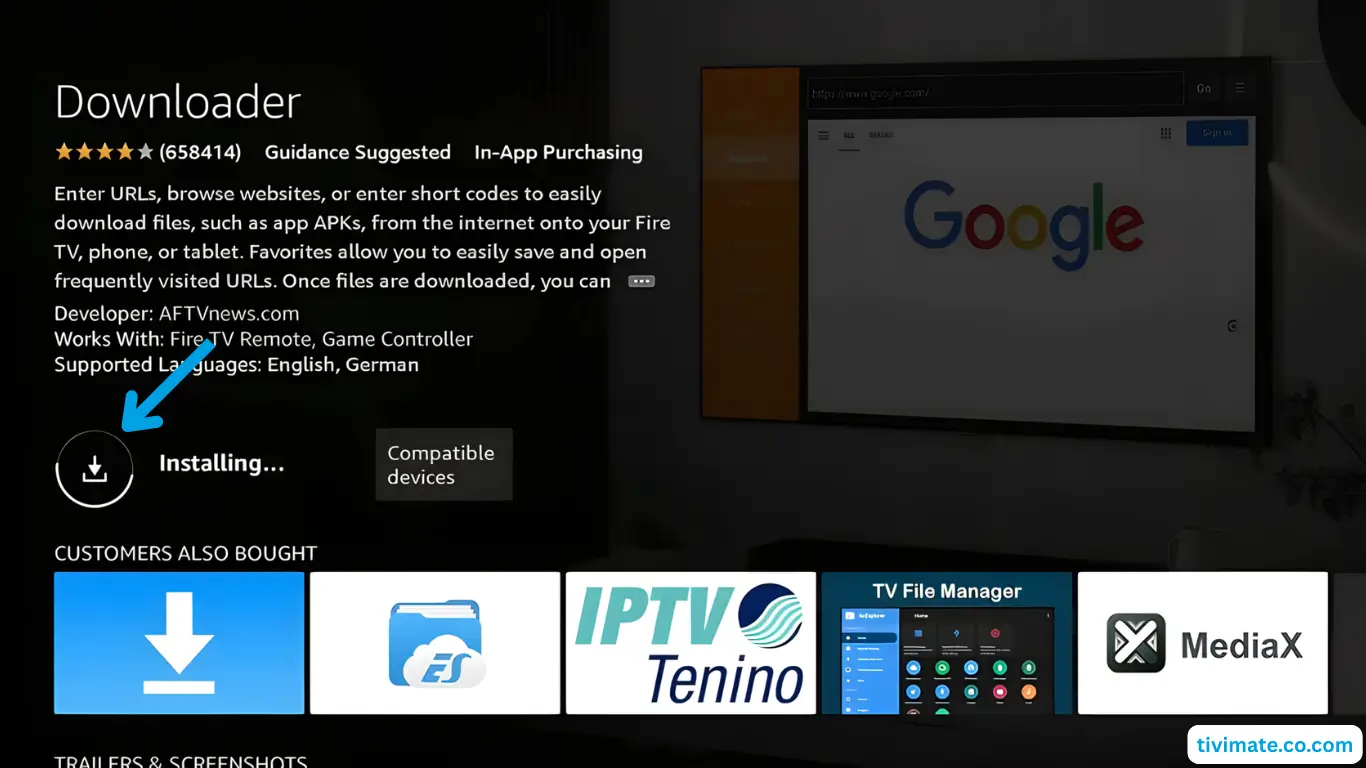
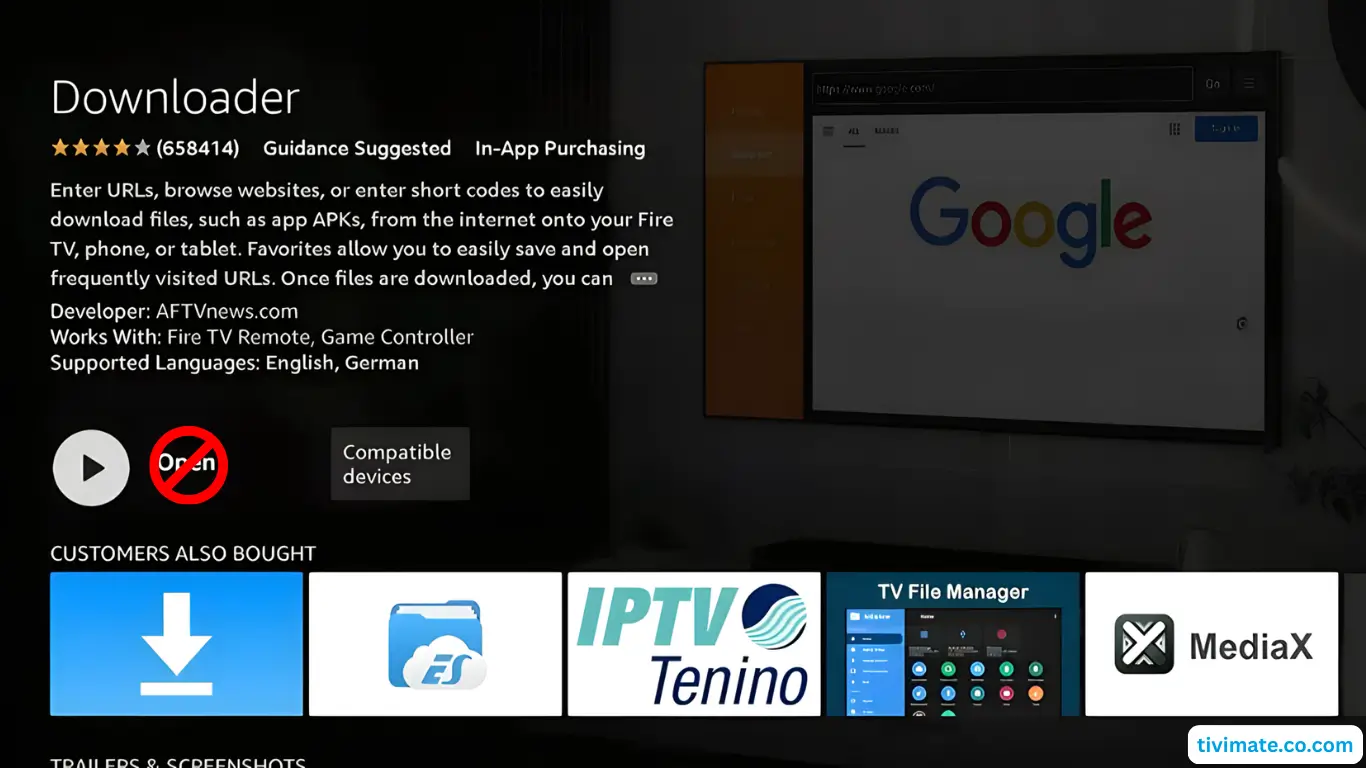
Part 1: Install Downloader

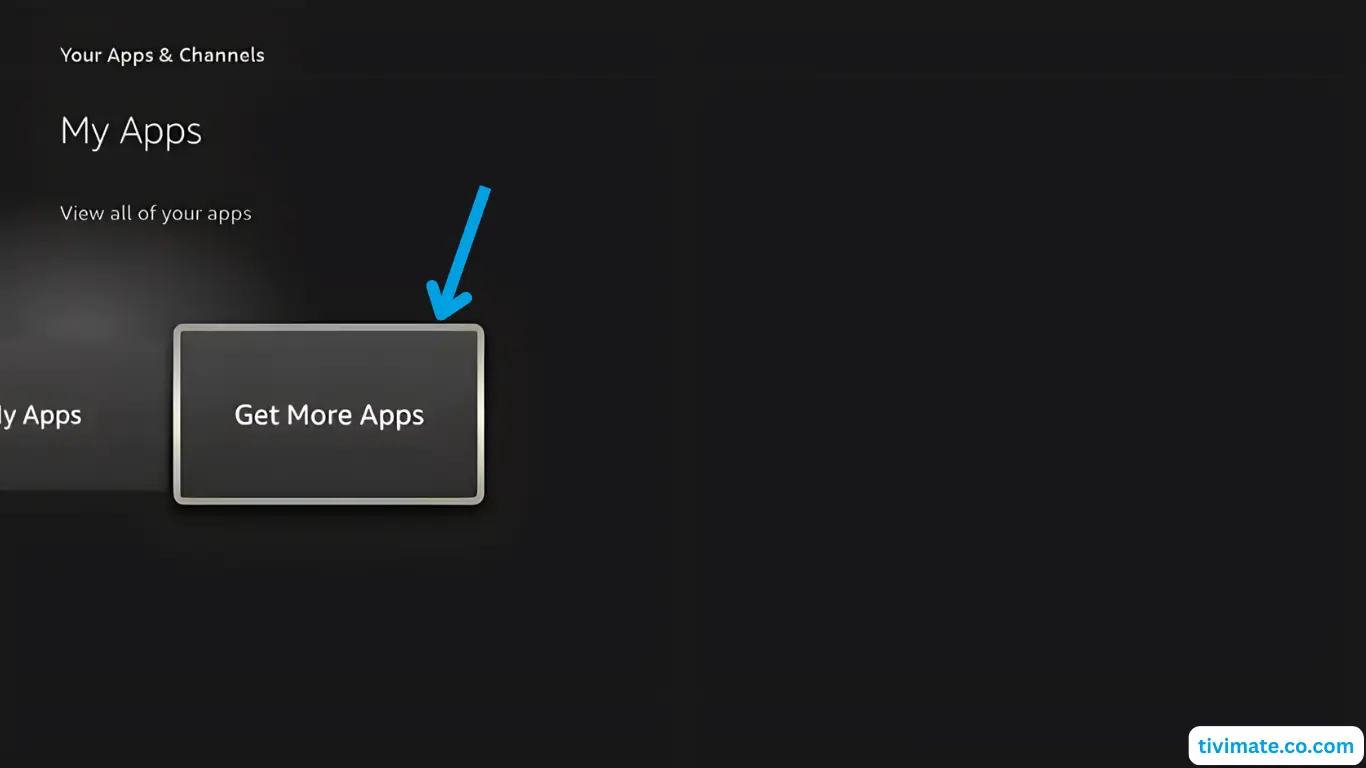
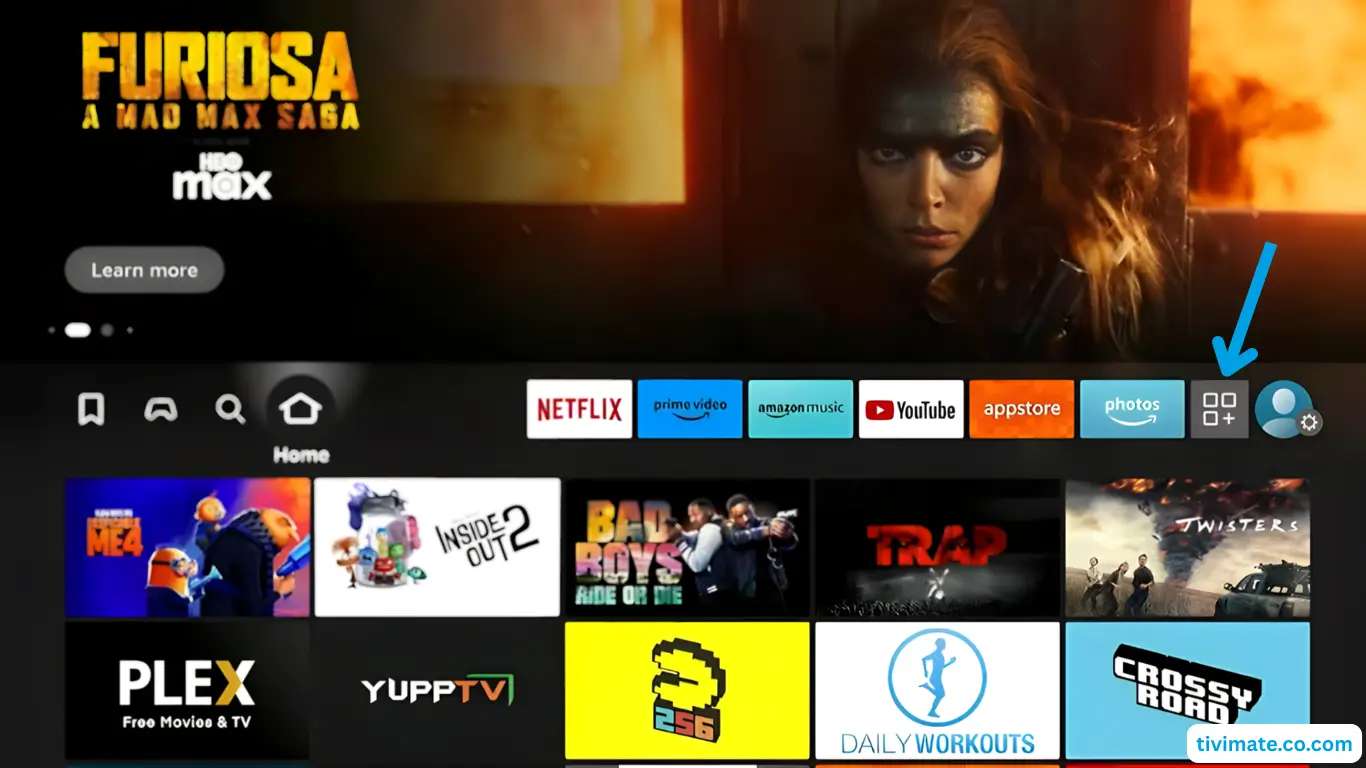
  1. From the Fire TV home screen, go to My Apps.

  2. Select Get more apps.

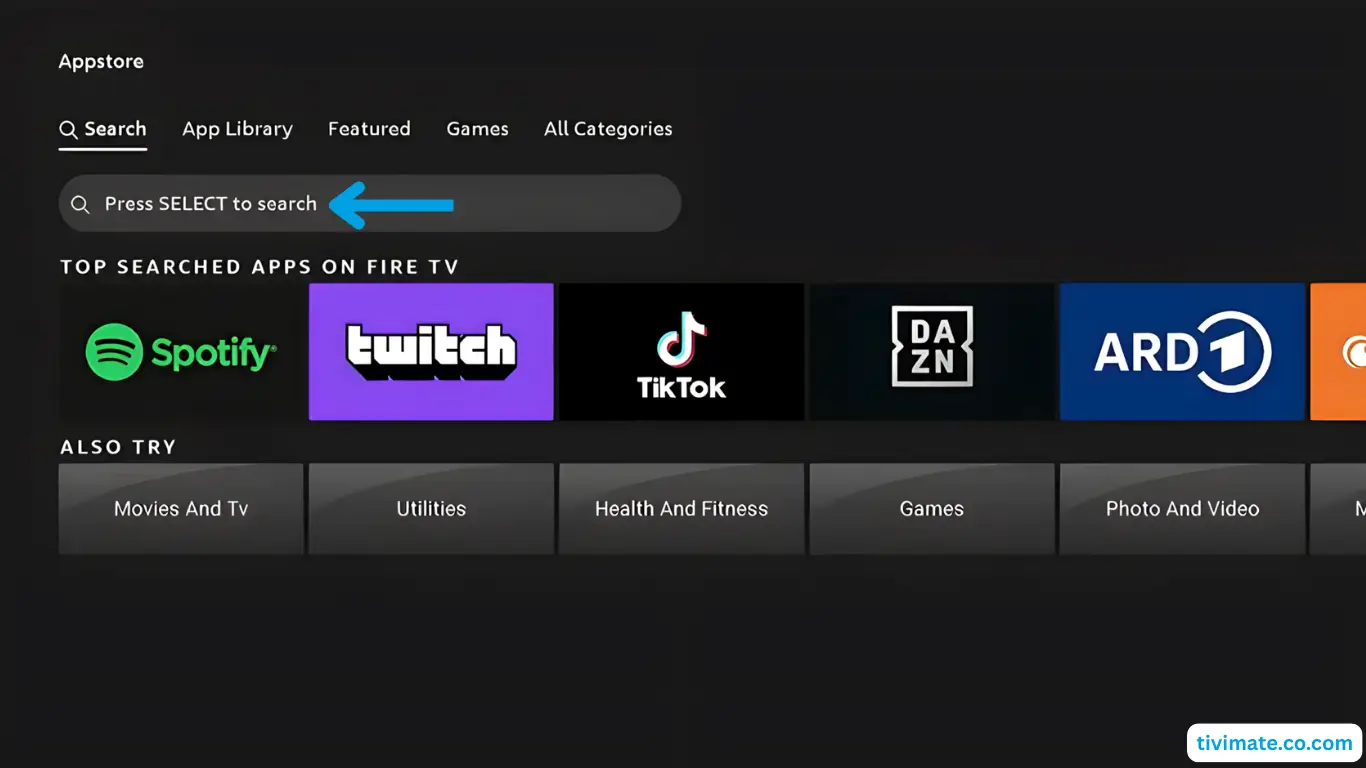
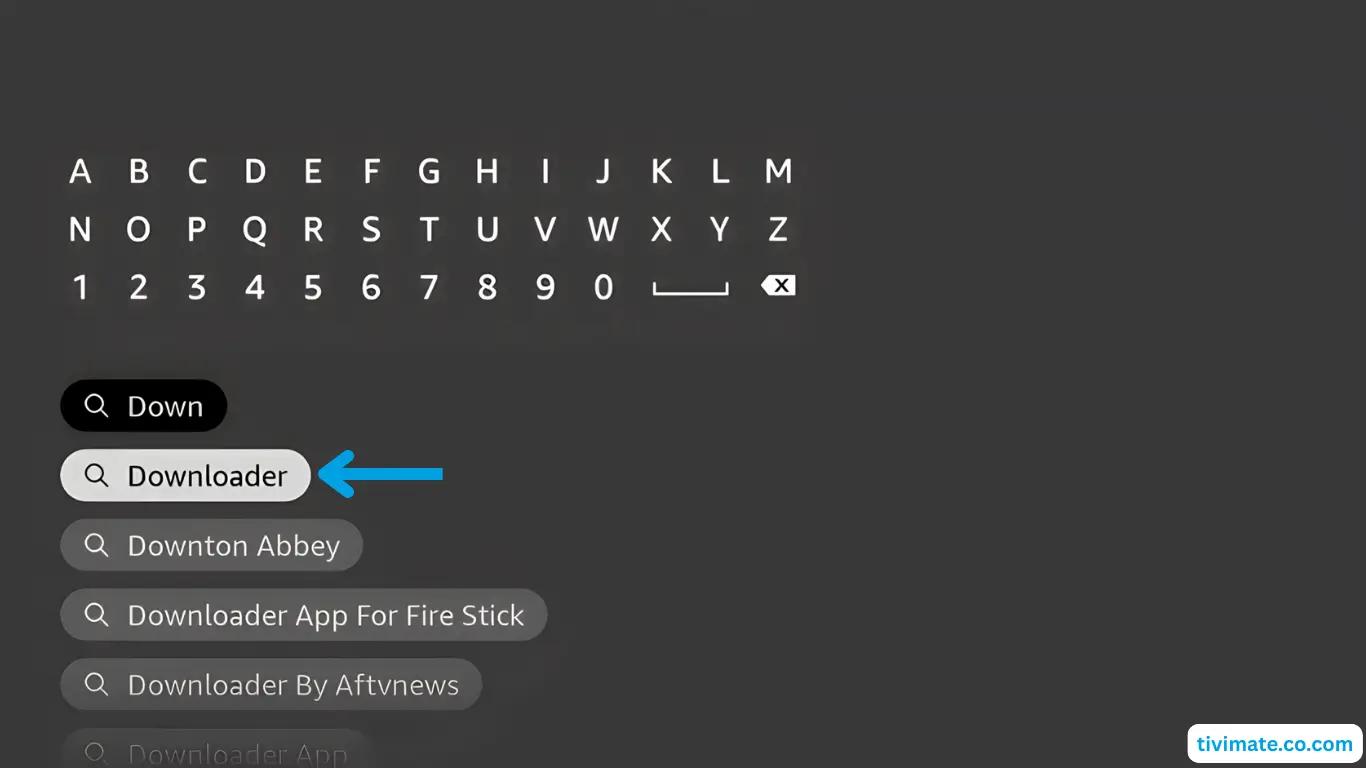
  3. Choose Search, press Down, then OK. Type Downloader.

  4. When the results show, select Downloader and press OK.

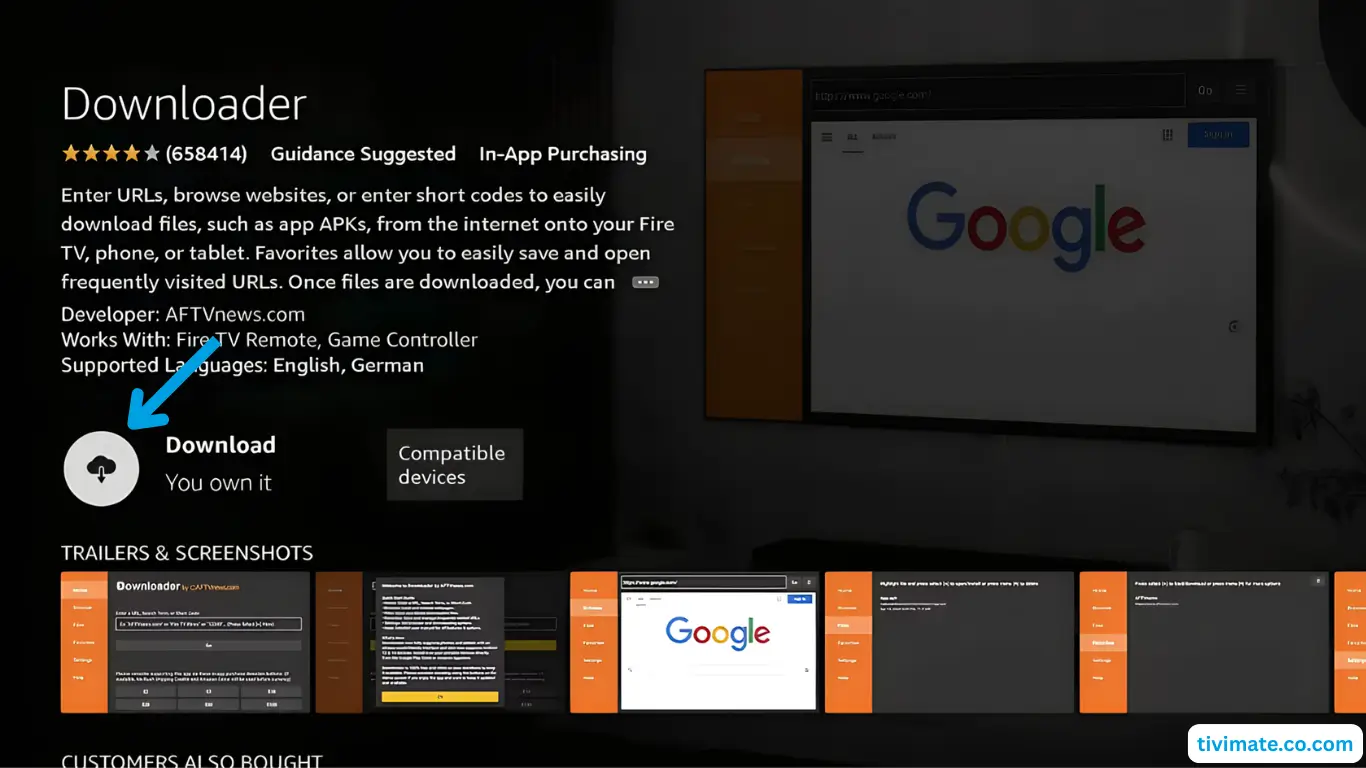
  5. Choose Downloader, then Download.

  6. Wait for it to download and install.

  7. Do not open it yet. Press Back to the home screen.

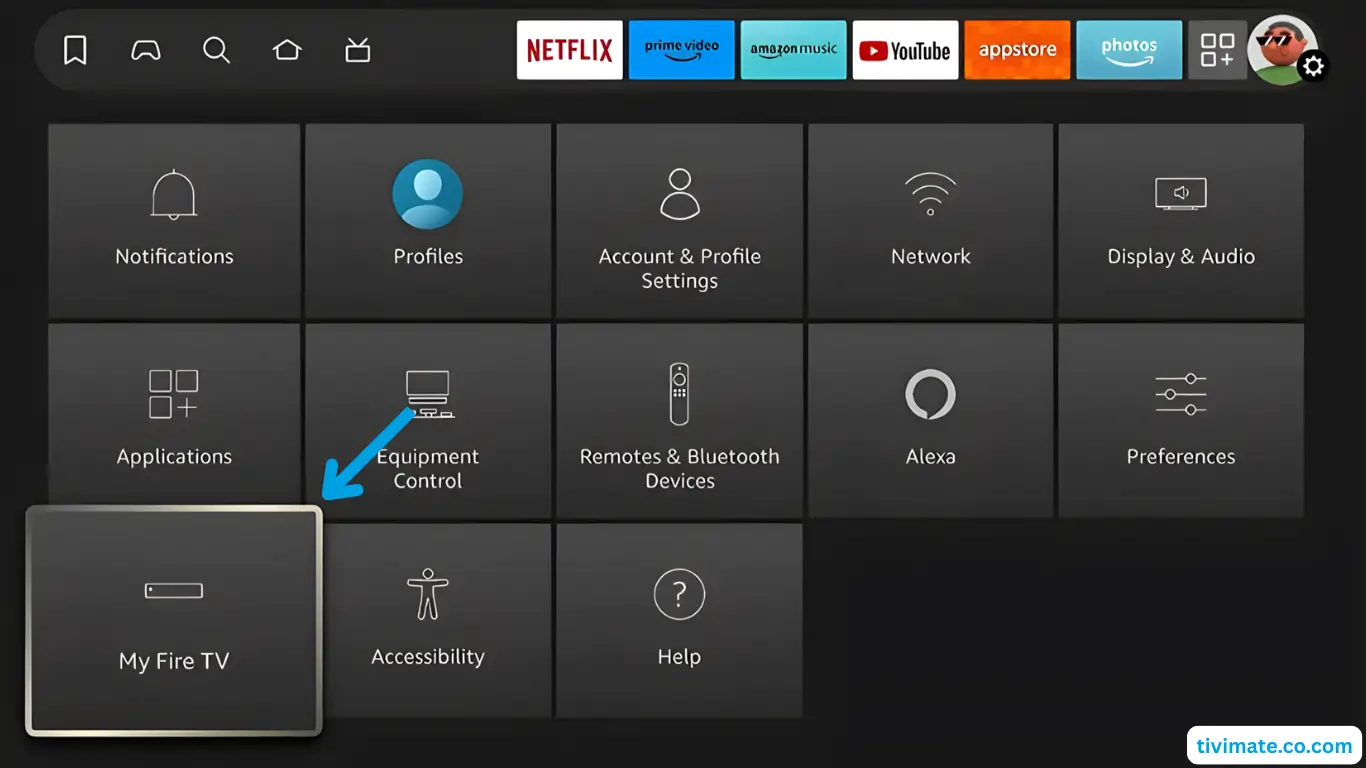
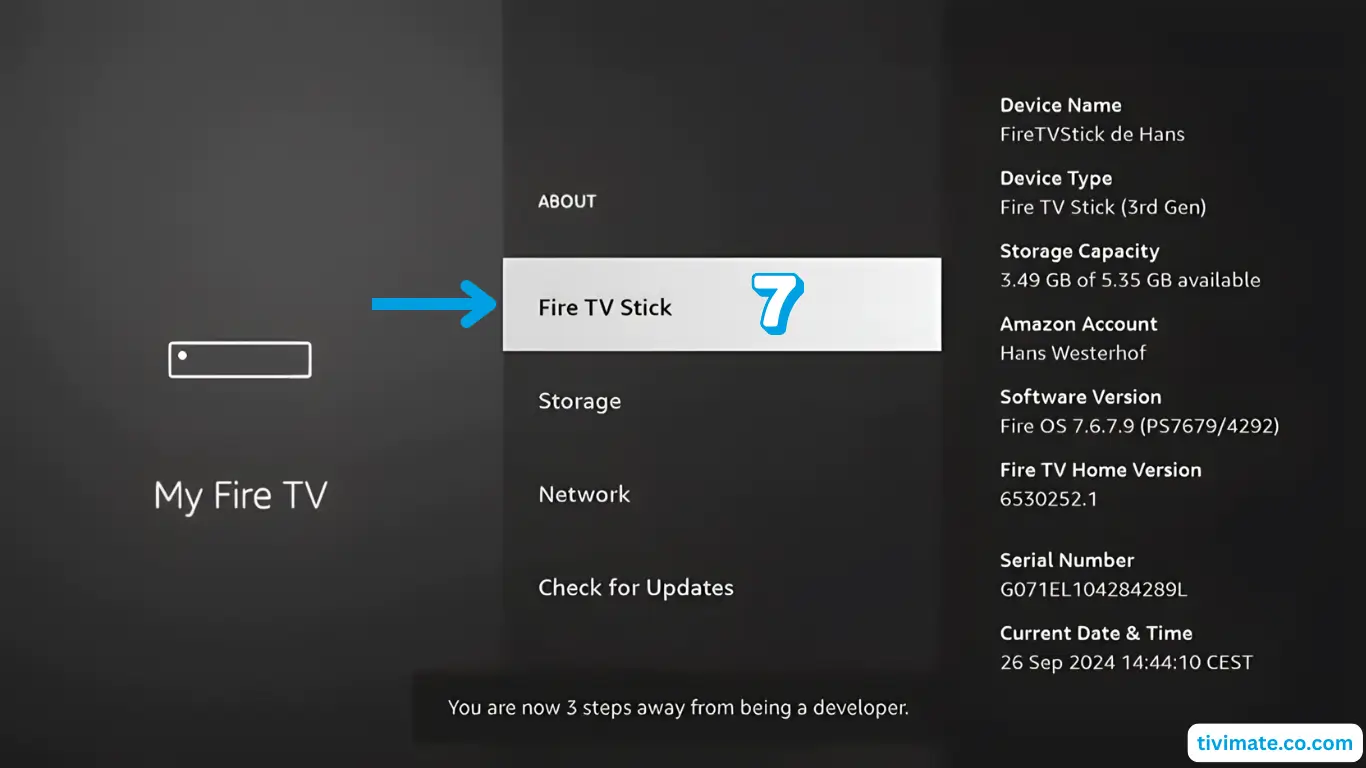
Part 2: Allow installs

  1. Go to Settings, then My Fire TV.

  2. Open About and click Fire TV Stick seven times to turn on Developer Options.

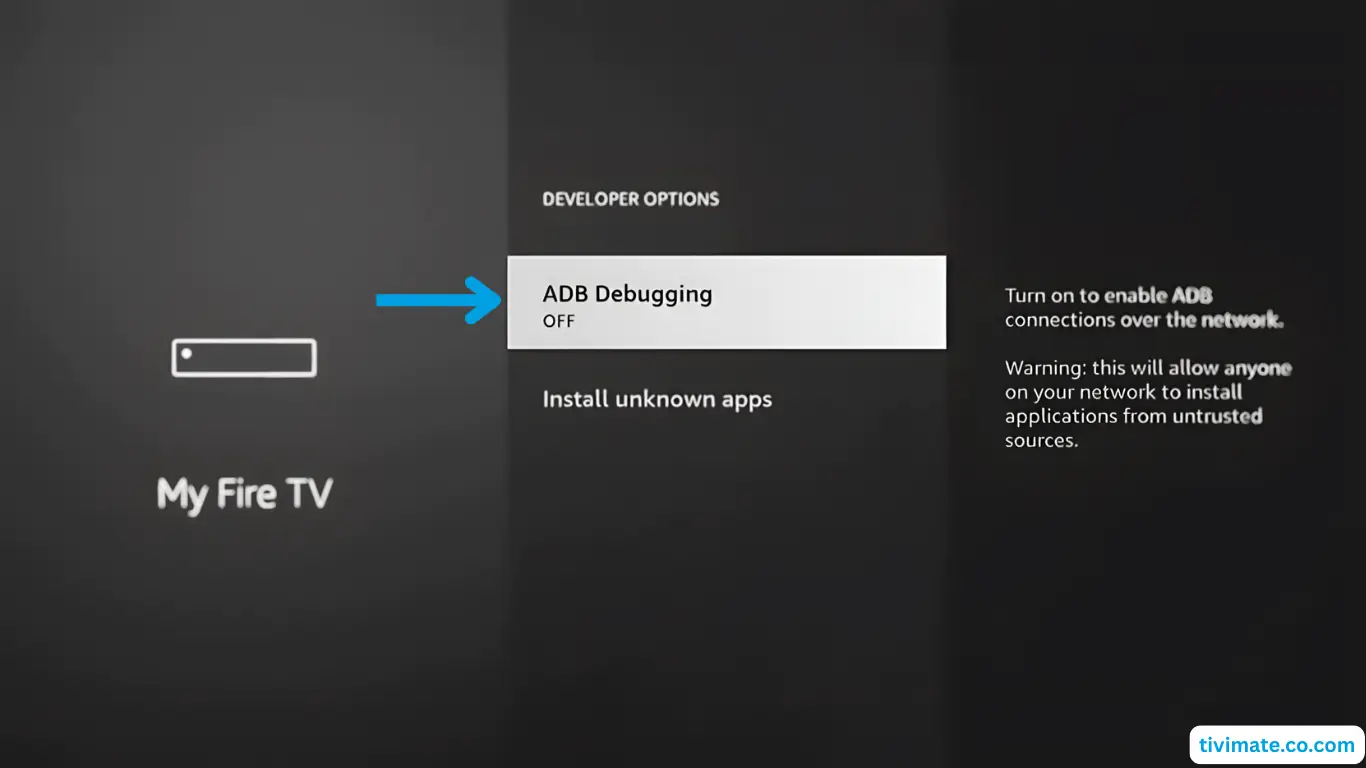
  3. Press Back, open Developer Options and turn ADB debugging on.

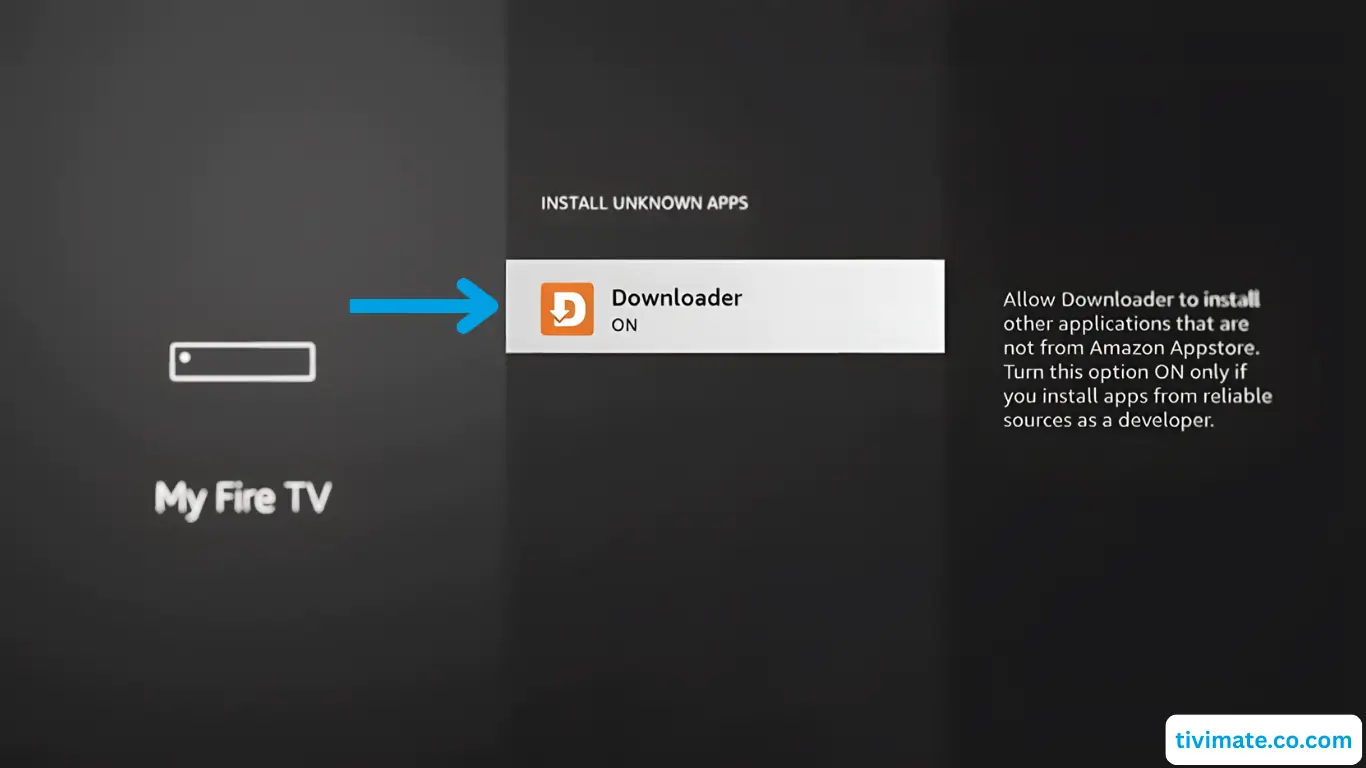
  4. Choose Install Unknown Apps and give Downloader permission.

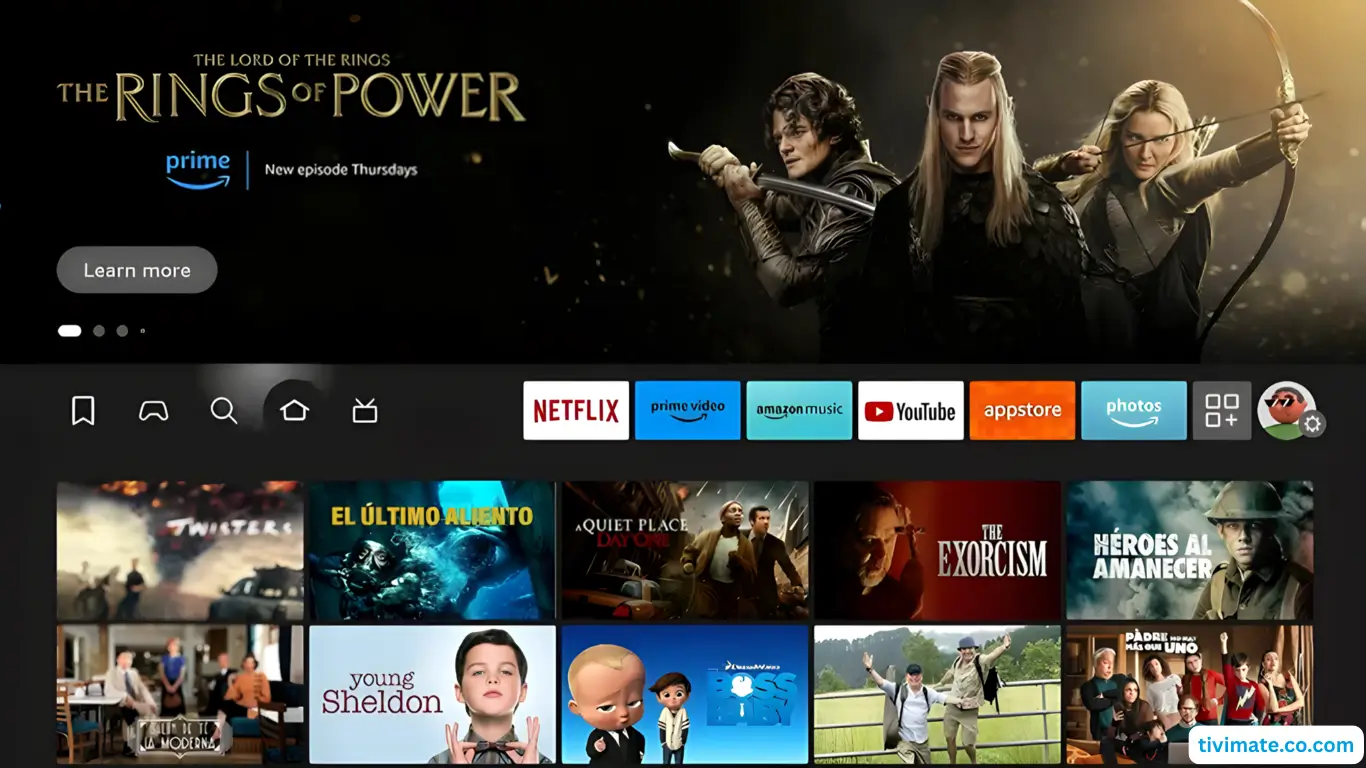
  5. Press the Home button to go back to the home screen.

Part 3: Install V12Mate

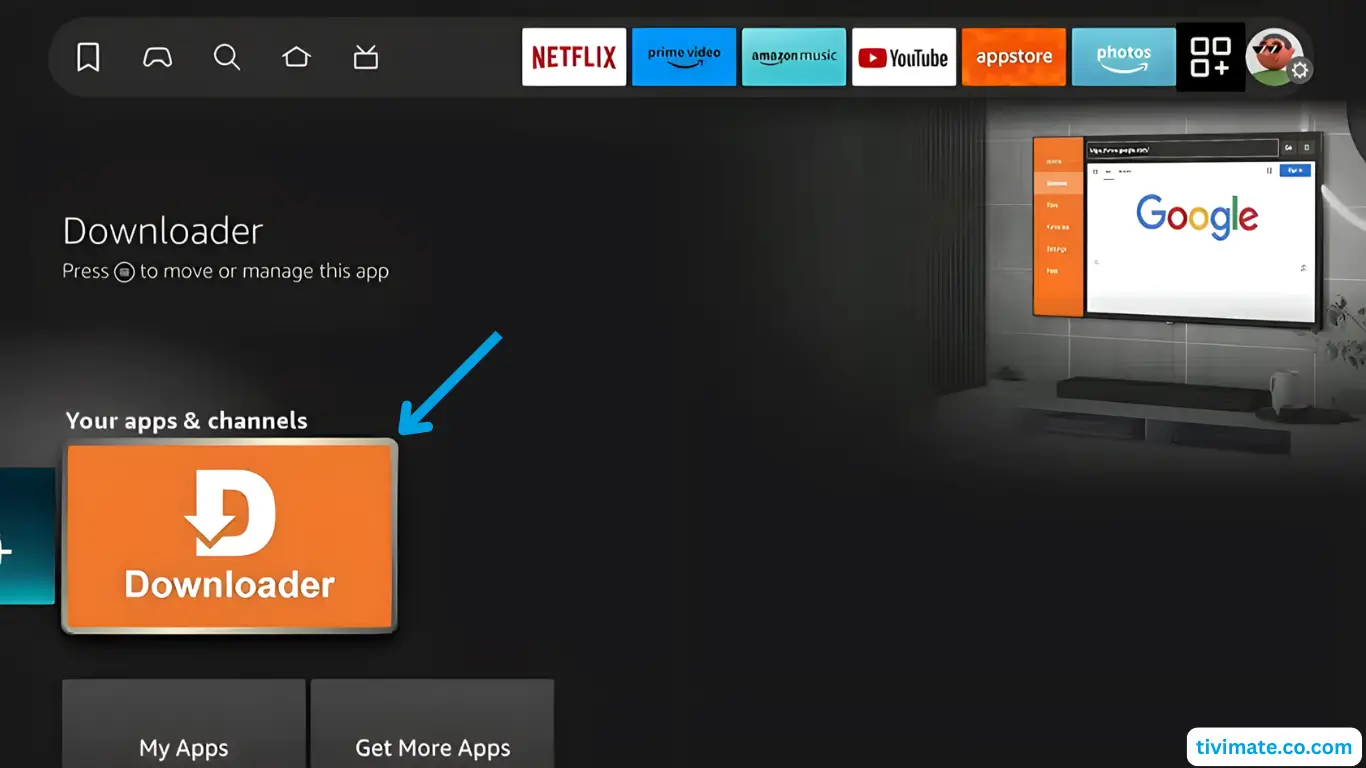
  1. Find Downloader and press OK to open it.

  2. Press Allow so Downloader can use your files, then press OK on the welcome message.

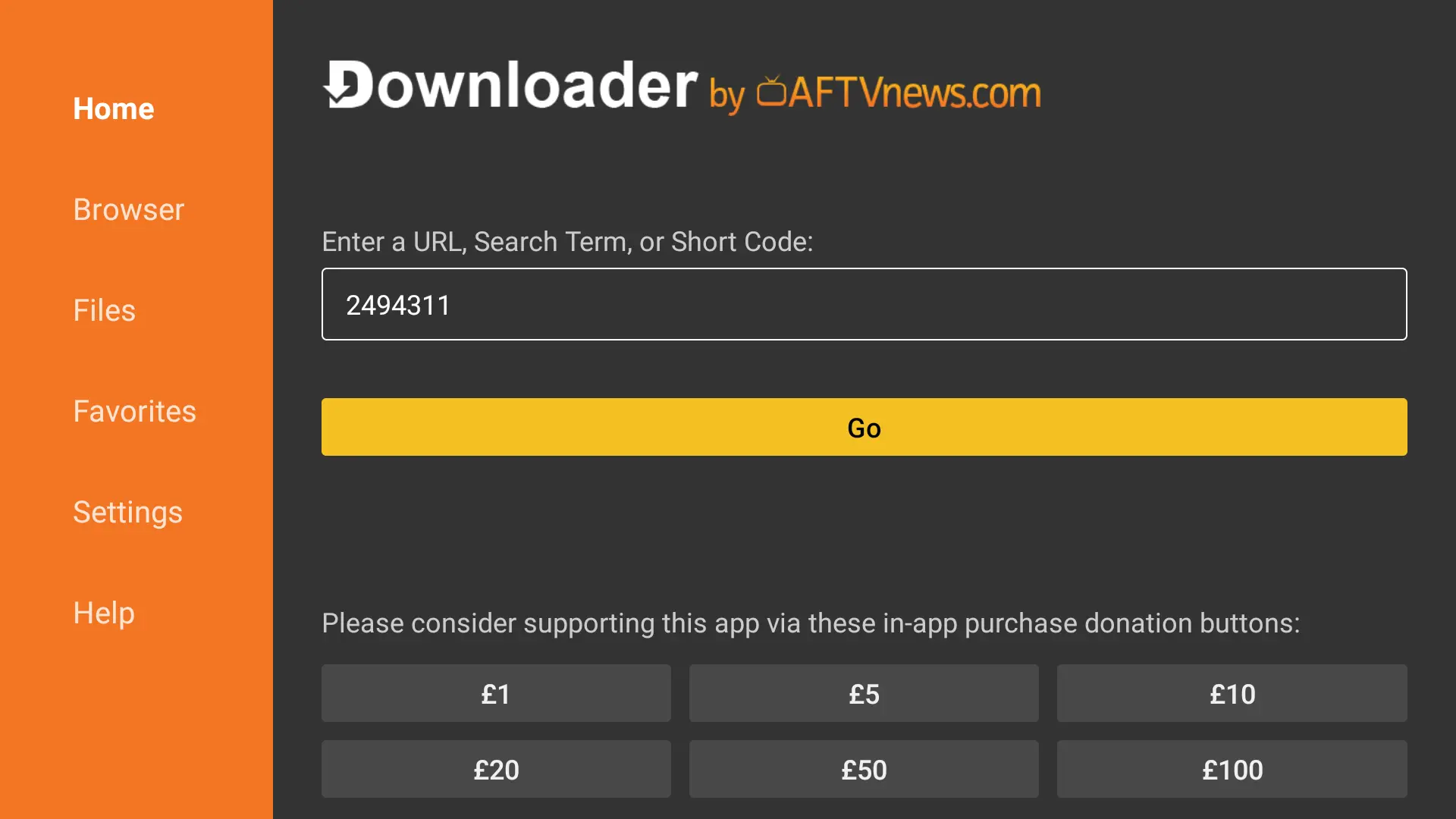
  3. Type the Downloader code for V12Mate: 2494311 and press GO.

  4. Accept the privacy policy, press Install, and confirm if it asks again. Wait for the install, then press Open.

  5. Press Add playlist, then V12MATE. If you only see “Cancel”, use the fix link under this guide.

  6. Enter your username and password. No server address is needed with V12Mate.

  7. Press Next, keep VOD and TV channels selected, and wait about a minute while it loads.

  8. Press Done. Your channels are ready.

Questions

Can I use another player?

Yes. Any player that supports Xtream Codes works, for example TiviMate or iMPlayer. Message us and we will help you set it up.

The install shows only “Cancel”.

Use the “fix the Cancel button” link under this guide, then try again.

Stuck on a step?Tell us what you see on screen and we will help.
Message us on WhatsApp

Android TV and Google TV setup guide

  • 3 to 5 minutes
  • V12Mate or TiviMate
  • Easy

Works on Sony, TCL, Hisense, Philips, Nvidia Shield, Chromecast with Google TV, Mi Box and most Android TV boxes.

Already have TiviMate installed? Uninstall it first before installing V12Mate.

Method 1: Downloader and V12Mate

  1. Open the Google Play Store, search for Downloader, install it and open it.

  2. Press Allow so Downloader can use your files, then press OK on the welcome message.

  3. Type the Downloader code for V12Mate: 2494311 and press GO.

  4. Accept the privacy policy, press Install, and confirm if it asks again. Wait for the install, then press Open.

  5. Press Add playlist, then V12MATE. If you only see “Cancel”, use the fix link under this guide.

  6. Enter your username and password. No server address is needed with V12Mate.

  7. Press Next, keep VOD and TV channels selected, and wait about a minute while it loads.

  8. Press Done. Your channels are ready.

Method 2: Google Play Store

  1. If V12Mate does not work for you, install TiviMate from the Google Play Store.

  2. Open it, add a playlist with Xtream Codes, and enter the username, password and server URL we send you.

Questions

What if my TV has no Play Store?

Use the Smart TV guide instead.

Is TiviMate included in my subscription?

No. Your subscription covers the channels. TiviMate is a separate app and its premium features are paid.

Stuck on a step?Tell us what you see on screen and we will help.
Message us on WhatsApp

Samsung, LG and other smart TVs setup guide

  • 5 to 7 minutes
  • Hot Player
  • Easy

For smart TVs without the Google Play Store. If your TV has the Play Store, follow the Android TV guide instead.

Hot Player asks for a small licence fee after a free trial. The channels come from your subscription, not from the app.

Steps

  1. On your TV, open the app store (LG Content Store, Samsung Apps and so on) and search for Hot Player. Install it.

  2. Open Hot Player. Your TV’s MAC address shows on the screen. Write it down or take a photo.

  3. On your phone or computer, open hotplayer.app and choose Upload List. Enter the MAC address and press Next.

  4. Set the source to Xtream Code. Enter any playlist name, the host (our server URL), your username and your password, then press Save.

  5. Back on the TV, refresh or restart Hot Player. Your channels load.

Questions

Where do I find the MAC address?

It shows on the Hot Player home screen the first time you open the app.

Nothing loads after saving.

Check the host, username and password, then restart the app and your TV.

Stuck on a step?Tell us what you see on screen and we will help.
Message us on WhatsApp

Roku setup guide

  • 5 to 7 minutes
  • Hot Player
  • Easy

Works on every Roku device, including Roku TV, Ultra, Streaming Stick and Express.

For the best picture, use a connection of at least 25 Mbps for HD and 50 Mbps for 4K on Roku.

Steps

  1. On your Roku, open the Channel Store and search for Hot Player. Choose Add Channel.

  2. Open Hot Player. The MAC address shows on the screen. Write it down.

  3. On your phone or computer, open hotplayer.app, choose Upload List, enter the MAC address and press Next.

  4. Set the source to Xtream Code. Enter any playlist name, the host (our server URL), your username and password, and press Save.

  5. Back on the Roku, refresh or restart Hot Player. Your channels load.

Questions

Where is the MAC address on my Roku?

Open Hot Player and it is shown on the first screen.

Stuck on a step?Tell us what you see on screen and we will help.
Message us on WhatsApp

iPhone, iPad and Apple TV setup guide

  • 3 minutes
  • iMPlayer
  • Easy

Use the App Store. No jailbreak is needed. On Apple TV, search the tvOS App Store for the same player.

Your username, password and server URL come to you on WhatsApp once your order is done. They are case-sensitive, so type them exactly.

Method 1: iMPlayer (recommended)

  1. Install iMPlayer from the App Store and open it.

  2. Tap Add a Playlist and choose the type XC API.

  3. Enter any playlist name, then the portal URL, username and password we sent you.

  4. Tap Add Playlist and wait until the content finishes downloading.

Method 2: Smarters Player Lite

  1. Install Smarters Player Lite and tap Add User.

  2. Choose Login with Xtream Codes API and enter your details, then tap Add User.

  3. Tap Live TV, pick a category and tap a channel to play.

Questions

Can I use the same login on my iPad?

Yes, as long as the number of screens in your plan allows it.

Stuck on a step?Tell us what you see on screen and we will help.
Message us on WhatsApp

Android phones and tablets setup guide

  • 3 to 5 minutes
  • iMPlayer or TiviMate
  • Easy

Works on Samsung, Pixel, Xiaomi, Oppo and most other Android devices.

Your username, password and server URL come to you on WhatsApp once your order is done. They are case-sensitive, so type them exactly.

Method 1: iMPlayer (recommended)

  1. Install iMPlayer from the Google Play Store and open it.

  2. Add a playlist with Xtream Codes (XC API).

  3. Enter the portal URL, username and password we sent you, and wait for the content to load.

Method 2: TiviMate Mobile

  1. Install TiviMate from the Google Play Store.

  2. Add a playlist with Xtream Codes and enter the same details.

Stuck on a step?Tell us what you see on screen and we will help.
Message us on WhatsApp

Windows and Mac setup guide

  • 5 minutes
  • IPTV Smarters Pro
  • Easy

Desktop apps with full HD support.

Your username, password and server URL come to you on WhatsApp once your order is done. They are case-sensitive, so type them exactly.

Method 1: IPTV Smarters Pro

  1. Open the official IPTV Smarters Pro website, go to Downloads and download the Windows or Mac version.

  2. Run the installer. If Windows asks for permission, choose Yes. It takes about two minutes.

  3. Open the app, choose Add New User, then Login with Xtream Codes API.

  4. Enter your username, password and portal URL.

Method 2: MyIPTV Player (Windows 10 and 11)

  1. Install MyIPTV Player from the Microsoft Store.

  2. Add a playlist or an Xtream Codes login with the details we sent you.

Stuck on a step?Tell us what you see on screen and we will help.
Message us on WhatsApp

Formuler and Dreamlink setup guide

  • 5 to 8 minutes
  • MyTVOnline or DOL2
  • Easy

Unlike MAG boxes, Formuler and Dreamlink boxes do not need a MAC address. You only need your username and password.

Your username, password and server URL come to you on WhatsApp once your order is done. They are case-sensitive, so type them exactly.

Formuler Z: MyTVOnline 2 or 3

  1. Open MyTVOnline 2 or 3 from the Formuler home screen.

  2. Go to Menu, Connections, Add Portal.

  3. Enter any portal name and our server URL. Turn Login required on, then enter your username and password.

  4. Press Connect. Your channels load.

Dreamlink: DOL2

  1. Open the DOL2 app from the Dreamlink home screen.

  2. Go to Menu, Portals, Edit Portal.

  3. Enter any title and our server URL, turn Login required on, and enter your username and password.

  4. Save, then restart the app to connect.

Stuck on a step?Tell us what you see on screen and we will help.
Message us on WhatsApp

BuzzTV setup guide

  • 5 to 8 minutes
  • XC API Login
  • Easy

Works on BuzzTV XPL 3000, XRS 4000, XRS 4500, E2000 and all BuzzTV Android boxes.

Your username, password and server URL come to you on WhatsApp once your order is done. They are case-sensitive, so type them exactly.

XC API Login (recommended)

  1. From the BuzzTV home screen, open Server Settings.

  2. Choose XC API Login, then Add XC API Login.

  3. Enter any portal name, our server URL, your username and your password.

  4. Press Connect or Save, go back to the home screen and open Live TV.

Questions

Which method should I use?

Use XC API Login, because you have a username and password.

Stuck on a step?Tell us what you see on screen and we will help.
Message us on WhatsApp

MAG box setup guide

  • 5 to 10 minutes
  • Built-in portal
  • Easy

MAG boxes use your box’s MAC address instead of a username. We register the MAC address, then you add the portal address we send you.

Send us the MAC address first. Without it we cannot activate your MAG box.

Steps

  1. Find your box’s MAC address. It is on the sticker under the box and starts with 00:1A:79. You can also see it in the box’s device info.

  2. Send the MAC address to us on WhatsApp (use the button below). We activate it and reply with your portal URL.

  3. Turn your MAG box on. When the portal loading screen shows, press SET (or SETUP) on the remote.

  4. Go to System settings, then Servers, then Portals.

  5. Enter Portal 1 name (for example IPTV TV) and Portal 1 URL (the address we sent). Leave Portal 2 empty.

  6. Press OK to save, exit the menu and restart the box. Your channels load.

Questions

Does a MAG box need a username and password?

No. It uses the MAC address, which we register for you.

The portal does not load.

Check the internet cable, make sure we have your correct MAC address, then restart the box.

Ready to activate your box?Send us your MAC address and we will do the rest.
Send my MAC address on WhatsApp

V12Mate shows only “Cancel” on Fire TV? Read the fix.

Which player should I use?

Your plan covers the channels. The player is a separate app made by another company, and we tell you the best one for your device.

PlayerBest forCostGood to know
V12MateFire TV Stick, Android TVFreeNo server address needed. Our recommended player for Fire TV and Android TV.
iMPlayeriPhone, iPad, Android phonesFree, with optional premiumA clean, modern player. A good first choice on phones and tablets.
Smarters Player LiteiPhone, iPadFreeA simple second option on Apple devices.
TiviMateAndroid TV, Android phonesFree, with a paid premiumKnown for its TV guide. Some features need premium.
Hot PlayerSamsung, LG, RokuLicence fee after a trialUses your TV’s MAC address. Used where there is no Play Store.
IPTV Smarters ProWindows, MacFreeA desktop player for laptops and PCs.

If something does not load

Work down this list. Most problems are fixed by the first four.

  • Check your internetAbout 15 to 20 Mbps is plenty for HD. Run a speed test on the same device.
  • Check your loginYour username, password and server details are case-sensitive. Type them exactly as we sent them.
  • Update the player appAn old version of a player app can fail to load channels or crash.
  • Restart everythingRestart the device, then restart your router or modem. It fixes more problems than anything else.
  • Try another server or turn off your VPNIf you use a VPN, switch servers or turn it off to test.
  • Clear the app cacheClear the player’s cache in your device settings, then open it again.
  • Use a cableA network cable to the TV is steadier than Wi-Fi, especially for 4K and live sport.

Setup questions

Which devices work?

Fire TV Stick, Android TV and Google TV, Samsung and LG smart TVs, Roku, Apple TV, iPhone, iPad, Android phones, Windows and Mac, Formuler, Dreamlink, BuzzTV and MAG boxes.

Do you support MAG boxes?

Yes. MAG boxes use the box’s MAC address. Send us the MAC address on WhatsApp, we register it, and we reply with the portal address to enter on the box. The MAG guide has the steps.

Which app should I use?

On Fire TV and Android TV we recommend V12Mate. iPhone and iPad can use iMPlayer or Smarters Player Lite. Smart TVs and Roku can use Hot Player. We tell you the best one for your device on WhatsApp. Open the setup guide.

Is the player app included in my plan?

Your plan includes the channels. The player app is a separate app. Some players are free and some charge a licence fee after a trial.

Is a Fire TV Stick good enough for IPTV?

Yes. A Fire TV Stick is one of the easiest and most popular ways to start. Follow the Fire TV steps in the setup guide.

Can I use one plan on several devices?

Yes. Your plan has a set number of screens that can watch at the same time, from 1 to 5. Message us on WhatsApp if you are not sure how many your household needs.

What internet speed do I need?

About 10 Mbps per screen for HD and about 25 Mbps per screen for 4K. An NBN 50 plan suits most homes, and NBN 100 is a good fit when several screens watch in 4K at the same time.

What if a channel stops working?

Message us on WhatsApp with the channel name and the device you are using, and we will help you sort it out. The tips in the setup guide fix most problems.

Nothing loads after I log in.

Check that your username, password and server details are typed exactly, because they are case-sensitive. Then restart the app and your device.

My picture keeps buffering.

Restart your router, move closer to it or use a cable, and close other downloads. If buffering is only on one channel, tell us the channel name.

The audio is out of sync with the video.

Stop the stream and start it again. If it keeps happening, try another channel or restart the app. If it only happens on one device, update the player app.

How do I turn on subtitles?

Subtitles are a feature of your player app. Look for a subtitles or closed captions button while a channel or movie is playing. Not every channel has them.

Can’t find your device?

Tell us what you watch on and we will find the right player for it.
Message us on WhatsApp