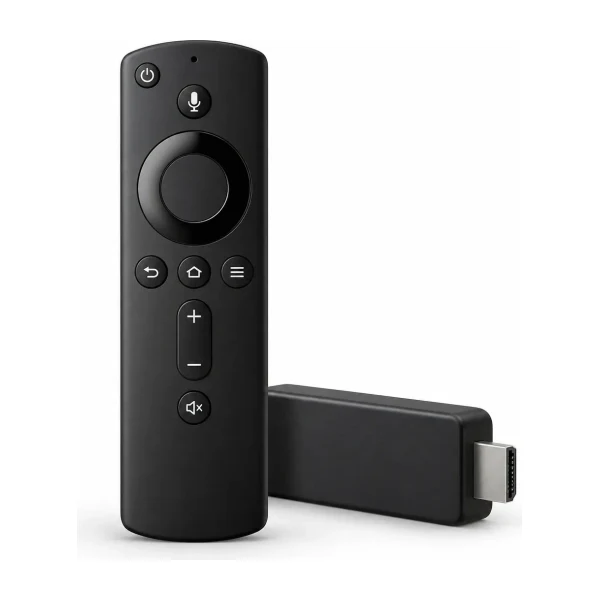
A Fire TV Stick is the most popular way to watch IPTV in Australian homes, and for good reason: it is small, inexpensive, works on almost any TV with an HDMI port, and you can set it up yourself without a technician. This guide walks through every step in order, explains why each setting is needed, and lists the problems people run into most often. If you prefer pictures, our installation guide shows each screen.
What you need before you start
- A Fire TV Stick, plugged into an HDMI port and set up with your Amazon account.
- A working internet connection. If the stick drops out often, read our NBN speed guide first.
- Your username and password, which we send on WhatsApp once your order is done.
- About ten minutes and the Fire TV remote.
Check your model first
Newer Fire TV models that run Amazon’s Vega OS cannot install the players we use for IPTV. If your stick says it runs Vega OS, or you are buying a new one, choose a model that runs Fire OS, or message us with the model name and we will tell you what works. The standard Fire TV Stick is enough for HD. A 4K model is worth it if your TV is 4K and you want 4K channels where they are offered.
Uninstall TiviMate if you have it
If TiviMate is already installed, uninstall it before you install V12Mate, because the two can clash and stop V12Mate from installing. You can reinstall TiviMate later if you prefer it.
Step 1: Install Downloader
Downloader is a small free app that lets you install other apps from a code. From the Fire TV home screen, choose Find, then Search, and type Downloader. Select it in the results, press Get, and wait for it to install. Do not open it yet; there is one setting to change first.
Step 2: Allow installs from Downloader
- Go to Settings, then My Fire TV.
- Open About, select the Fire TV Stick name, and press OK seven times. A message says you are now a developer.
- Press Back, then open Developer Options and switch ADB debugging on.
- Choose Install Unknown Apps and switch Downloader on.
These steps look unusual, but they only tell the stick that you allow Downloader to install an app you chose. Developer Options is hidden by default, which is why you have to press OK seven times to reveal it.
Step 3: Install your player
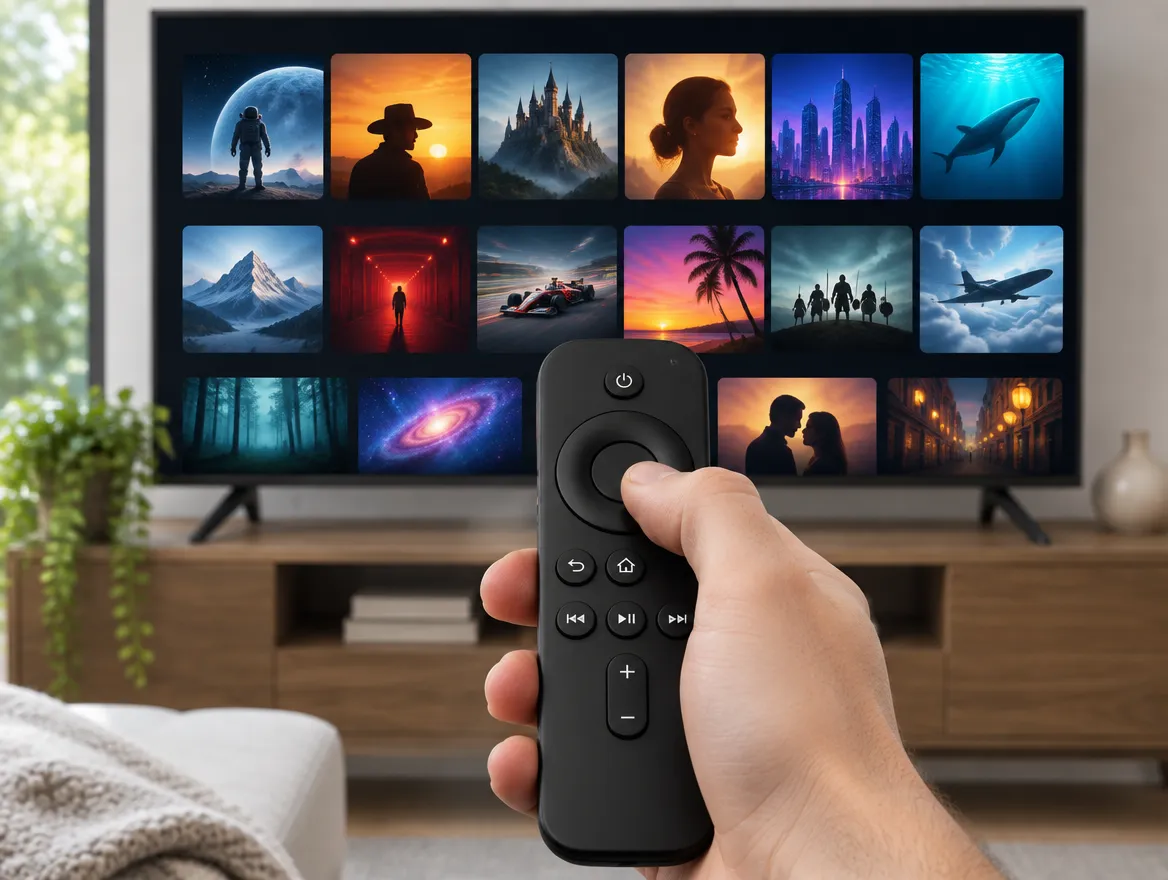
We send you the name of the player and its Downloader code on WhatsApp. Open Downloader, press Allow so it can use your files, and dismiss the welcome message. Type the code into the address box and press Go. When the download finishes, accept the privacy policy, press Install, and press Open when it is done.
Step 4: Add your login
Open the player and press Add playlist. For V12Mate, choose V12Mate and enter your username and password. This player does not ask for a server address. Keep VOD and TV channels selected, press Next, and wait about a minute while the channel list loads. Press Done, and you are ready to watch.
If you are using another player, such as TiviMate or iMPlayer, choose Xtream Codes and enter the username, password and server details we sent. Our guide to M3U, Xtream Codes and MAG portals explains the differences.
Learn the TV guide and favourites
Once the channels load, spend two minutes in the TV guide. Star the channels you watch most so they appear first, and learn how to search by name. How to use the IPTV TV guide explains the guide screen in detail.
Common Fire TV problems and fixes
| Problem | What to try |
|---|---|
| Developer Options is missing | Open My Fire TV, About, and press OK on the device name seven times. |
| Downloader will not install the app | Turn Install Unknown Apps on for Downloader. Check the stick has free storage. |
| The app says it is not compatible | Your model may be too new. Message us with the model name. |
| The install shows only Cancel | Use the fix link at the bottom of the setup guide, then try again. |
| Nothing loads after you log in | Check the username and password. They are case-sensitive. Restart the app and the stick. |
| The picture keeps pausing | Restart your router, use a cable if possible, and read our buffering guide. |
Keeping your Fire TV Stick running well
A stick that was fast on day one can slow down over months. A few habits keep it smooth.
- Power it properly. Use the wall adapter that came in the box. The USB port on a TV often cannot supply enough power, which causes random restarts and slow menus.
- Restart it once a week. Hold Select and Play for a few seconds, or use Settings, then My Fire TV, then Restart.
- Keep some storage free. Remove apps you do not use. A full stick installs and updates slowly.
- Keep the player updated. Open the app store or the player’s own update option every few weeks.
- Avoid heat. A stick tucked behind a hot TV can throttle. Use the short HDMI extender in the box to give it air.
After a Fire OS update, the stick may ask you to confirm settings again. If the player stops working afterwards, restart the stick and check that Install Unknown Apps is still on for Downloader. If problems continue, our buffering fixes cover the most common causes, and the device guide helps you decide whether a different box would suit you better.
Questions people ask
Do I need a VPN on a Fire TV Stick?
No. You do not need one to use the service. Some people try one if their internet provider slows streaming.
Can I use two Fire TV Sticks on one plan?
Yes, as long as the number of screens watching at the same time stays within your plan. A 2-screen plan covers two sticks watching together. See how many screens you need.
How do I update or remove the app?
Open Settings, then Applications, then Manage Installed Applications. You can clear data, update or uninstall from there. Your login stays the same.
Is a Fire TV Stick good enough for 4K?
A 4K model is. A standard model plays HD. Whichever you use, a cable or a strong Wi-Fi signal makes the most difference.
Is a Fire TV Stick better than a smart TV app?
Usually it is easier. A stick gets updates and has more player choices than many smart TVs. Our device comparison covers the options.
 Setup
 Guides