
Buffering is the spinning circle, the frozen frame, the picture that pauses and catches up. It is the most common complaint about any streaming service, and in most homes it has a simple cause. This guide lists ten fixes in the order that solves most problems first, and explains how to tell whether the problem is your internet, your device or a single channel.
First, work out what kind of problem it is
- Everything slows down at the same time, including websites on your phone: the cause is your internet connection.
- Only one channel buffers: the problem may be that channel. Tell us its name.
- Only one TV buffers: the cause is that device or the Wi-Fi in that room.
- Only at night or on game day: your connection is busy, so it is a capacity issue.
The ten fixes
- Restart the router and the device. Switch the router off for 30 seconds, then on again, and restart the streaming device. Wait a few minutes for everything to reconnect.
- Use a cable. A network cable to the TV is steadier than Wi-Fi. If your TV or box has a network port, use it.
- Move closer to the router. If you must use Wi-Fi, choose the 5 GHz band or add a mesh point for a larger home.
- Pause other downloads. Game updates, cloud backups and other streams use the same connection. Check every device in the house.
- Check your speed in the evening. About 25 Mbps for each 4K screen is a good rule. Our NBN speed guide explains what to expect.
- Update the player app. An old version can load channels badly.
- Clear the app’s cache. In your device settings, clear the player’s cache and open it again. Your login does not change.
- Try a lower quality. If your connection is limited, an HD channel is steadier than a 4K one.
- Try another channel. If only one channel buffers, tell us the name, and we can check it.
- Test a VPN carefully. Some internet providers slow streaming traffic. If speed tests are good but streams struggle, a VPN may help. Check your provider’s terms first.

Router settings worth checking
- Put the router in the open, not in a cupboard and not behind the TV.
- Use the 5 GHz Wi-Fi band for the TV where possible. The 2.4 GHz band reaches further but is slower and more crowded.
- Keep the router’s firmware up to date.
- Restart it occasionally, such as once a week, if it tends to slow down over time.
When the cause is your internet provider
If your speed tests are good but streaming struggles at the same times every day, your provider may be slowing certain traffic or your area may be congested. Note the times, run speed tests at those times, and talk to your provider. A connection on fixed wireless or satellite is more likely to be affected by weather and busy periods.
Is it the player or the stream?
If a different app works fine on the same device and connection, try another player for IPTV. Our player table lists the options for each device. If the same channel fails on every device, message us with the channel name, the time and your device.

Buffering during live sport
Big matches are when everyone nearby is online. Use a cable, test the day before, and keep the number of screens within what your connection can handle. IPTV for sport in Australia has a game-night checklist and a time zone table.
When to message us
If buffering continues after the first five fixes, message us on WhatsApp. Tell us:
- your device and the player you use;
- whether you are on Wi-Fi or a cable;
- the time it happens and the channel;
- your connection type if you know it, such as fibre, cable, fixed wireless or satellite.
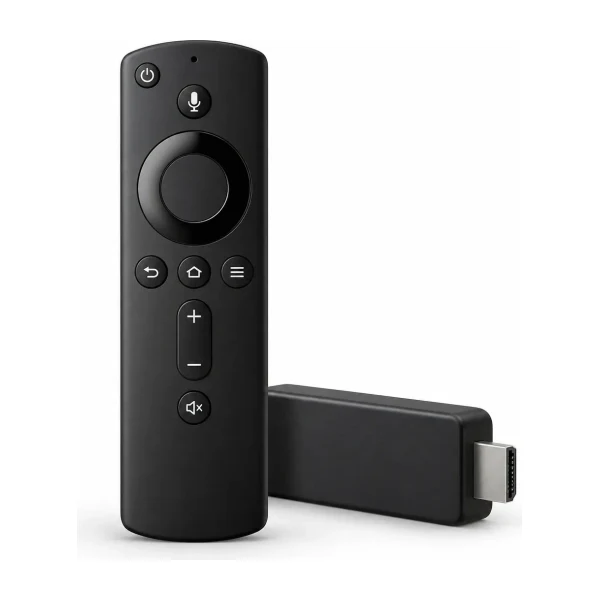
That is what we need to help quickly. More background is in our Fire TV setup guide and FAQ.
A 15-minute buffering test routine
When something is wrong, guessing wastes time. This routine finds the cause quickly and gives you facts to send us if it is not fixed.
| Minutes | What to do | What it tells you |
|---|---|---|
| 0 to 3 | Restart the router and the device. Wait for them to reconnect. | Fixes many temporary faults. |
| 3 to 6 | Connect the TV with a cable, or move next to the router. | Shows whether Wi-Fi is the cause. |
| 6 to 10 | Run a speed test on the same device, and note the result. | Shows whether the connection is fast enough. |
| 10 to 13 | Try a different channel, and then a different player if you have one. | Shows whether it is one channel or the app. |
| 13 to 15 | Pause every other download and try again at the same time as before. | Shows whether other devices are using the capacity. |
Write down the results as you go. If the problem is still there, message us with them, along with the time, your device and the channel name. That turns a vague “it buffers” into a problem we can actually investigate. Our NBN speed guide explains what the numbers should look like.
Questions people ask
Why does it only buffer on one TV?
That points to the device or the Wi-Fi signal in that room. Try a cable, a closer position or a mesh point.
Will a faster NBN plan fix buffering?
Only if speed is the problem. Wi-Fi problems and old routers are very common causes, and a faster plan does not fix those.
Should I lower the quality?
If your connection is limited, an HD channel is steadier than a 4K one.
Does a VPN help?
Sometimes, if your provider slows streaming traffic. It can also make things slower, so test it and turn it off if there is no improvement.
Why does it buffer at night?
Evenings are the busiest time on most networks. Test at that time, and use a cable if you can.
Is it dead channel or buffering?
If the picture freezes and then recovers, it is buffering. If a channel never loads, try another channel and tell us the name.
 Setup
 Setup
 Setup